Batch Processing for Bank Statements: Passwords, Progress, Downloads
How to queue many PDFs at once, handle protected files, watch live progress, use history for long jobs, and export ZIP, merged, or single files.

Your client drops twelve statements into chat. You are not opening them one by one unless you enjoy repetitive strain. Batch mode exists for exactly that afternoon.
This page is the narrow companion to the full visual guide. It only covers multi-file jobs, passwords, progress, and how to pull results back out.
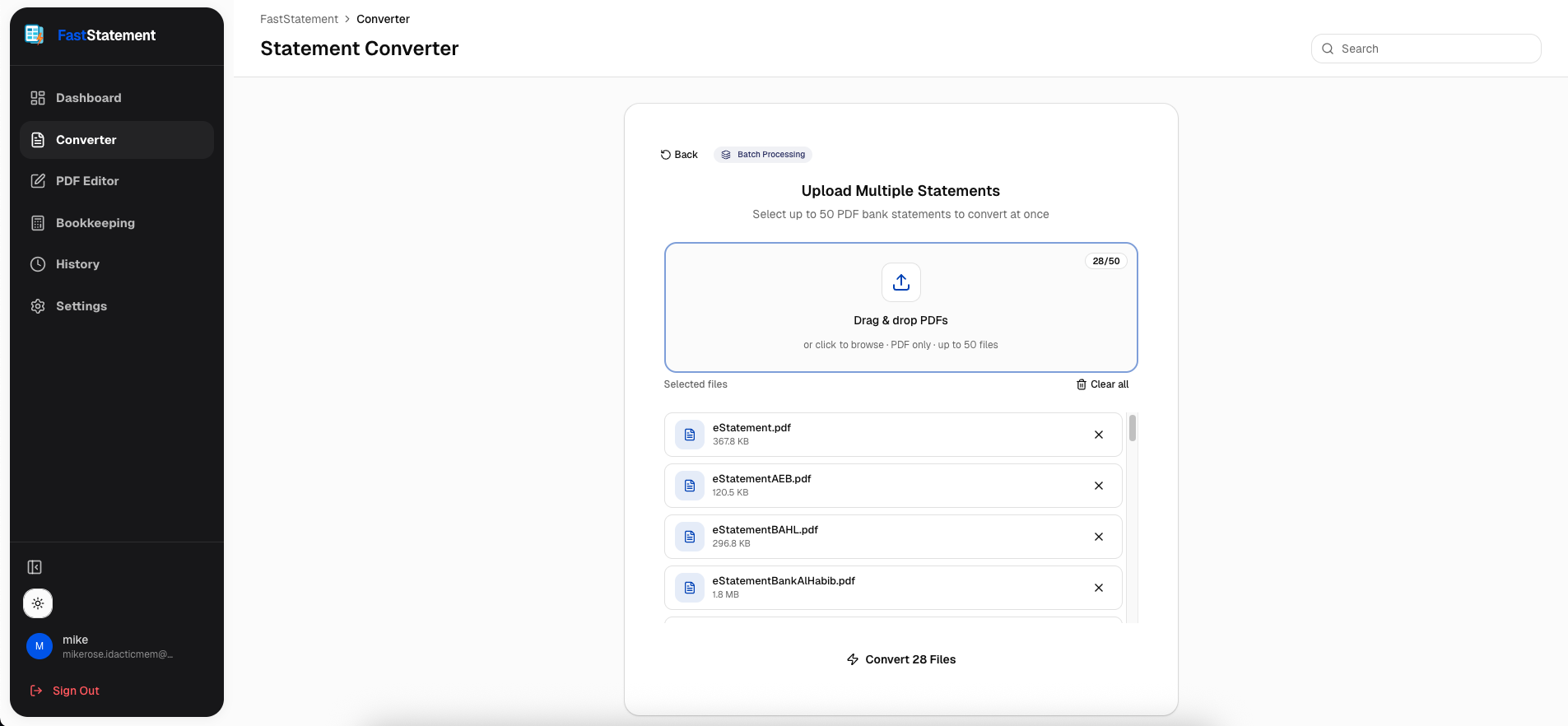
Pick every file before you start
Open batch processing and select all PDFs you already have on disk. If you forget one, you will queue another job later. That is fine, but grouping by bank or month keeps naming sane on export.
Passwords, skips, and failed reads
The batch flow checks whether any file is encrypted before it burns time uploading the whole stack.
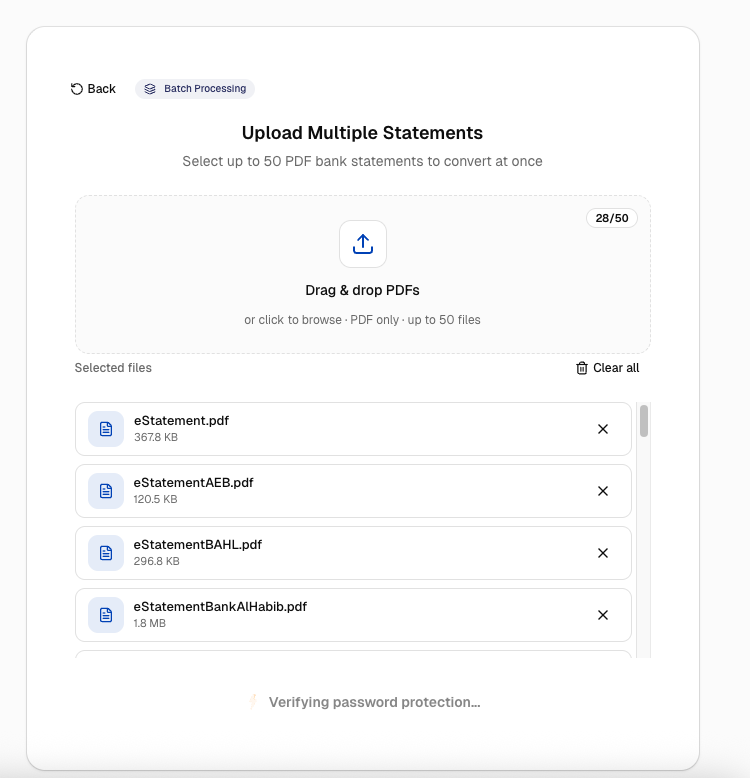
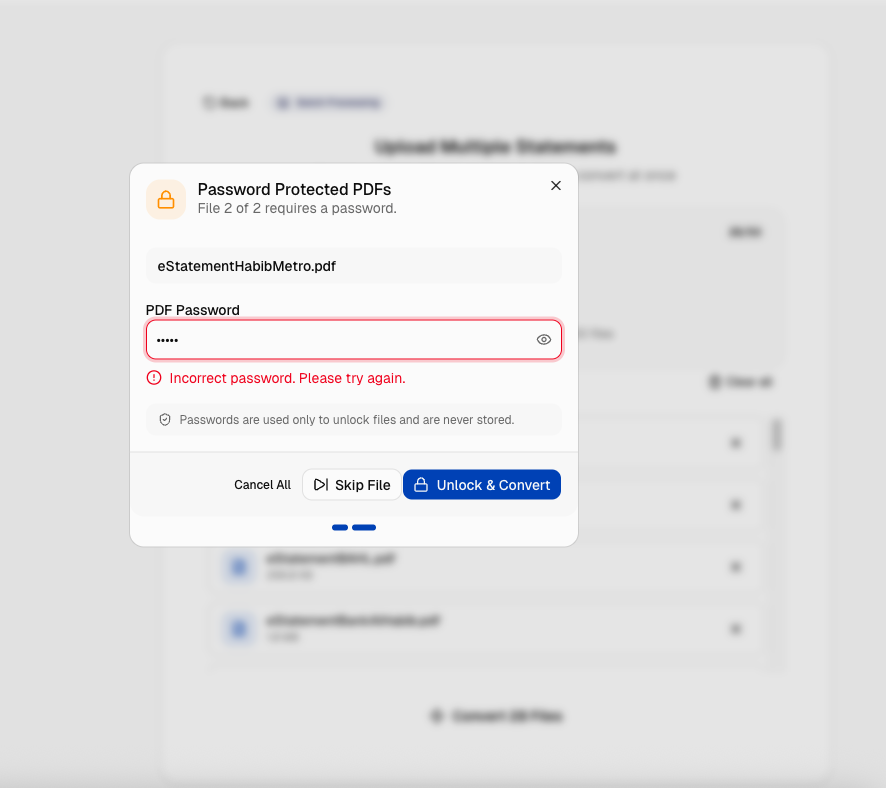
When a file needs a password, you can enter it, skip that file for now, or leave it aside if you do not have the credential yet.
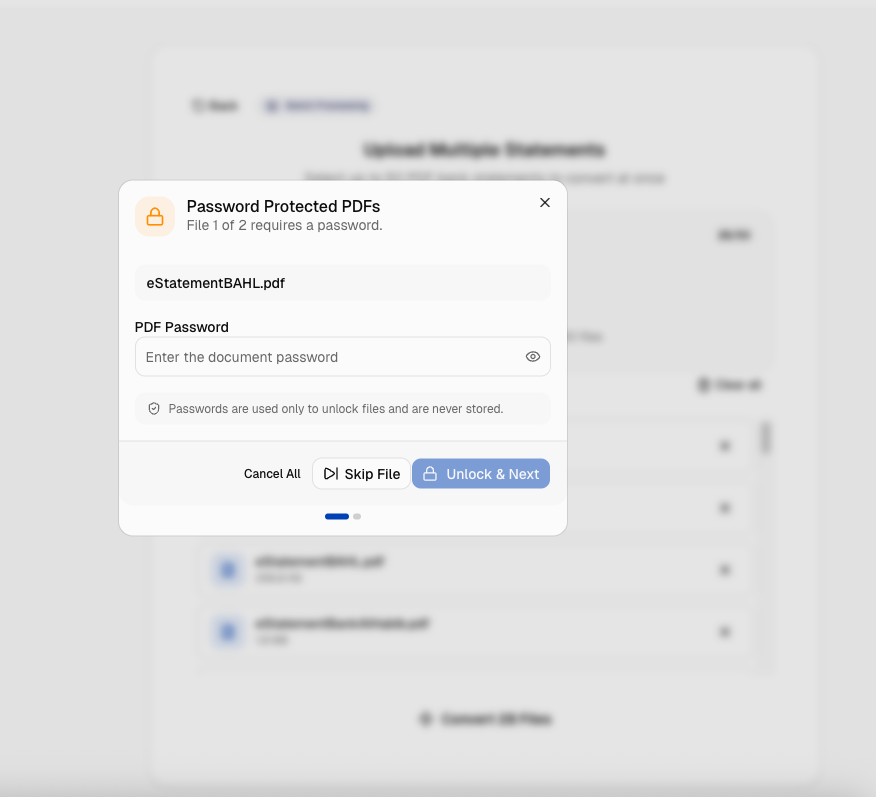
If the password is wrong, the UI tells you plainly so you are not debugging a silent failure.
Quota and upload discipline
After analysis, the product verifies your plan limits against the batch you queued. If you are close to a cap, you see it here instead of after a twenty-minute wait.
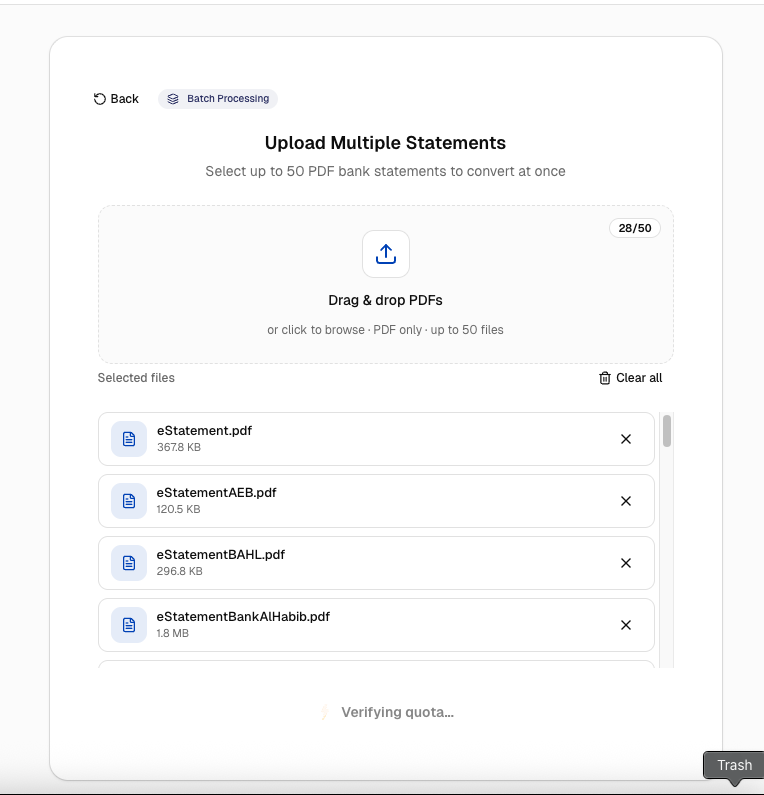
Finish uploading before you close the tab. Large files on a slow uplink can take minutes; reloading mid-upload is how jobs get duplicated in your head even when the server is fine.
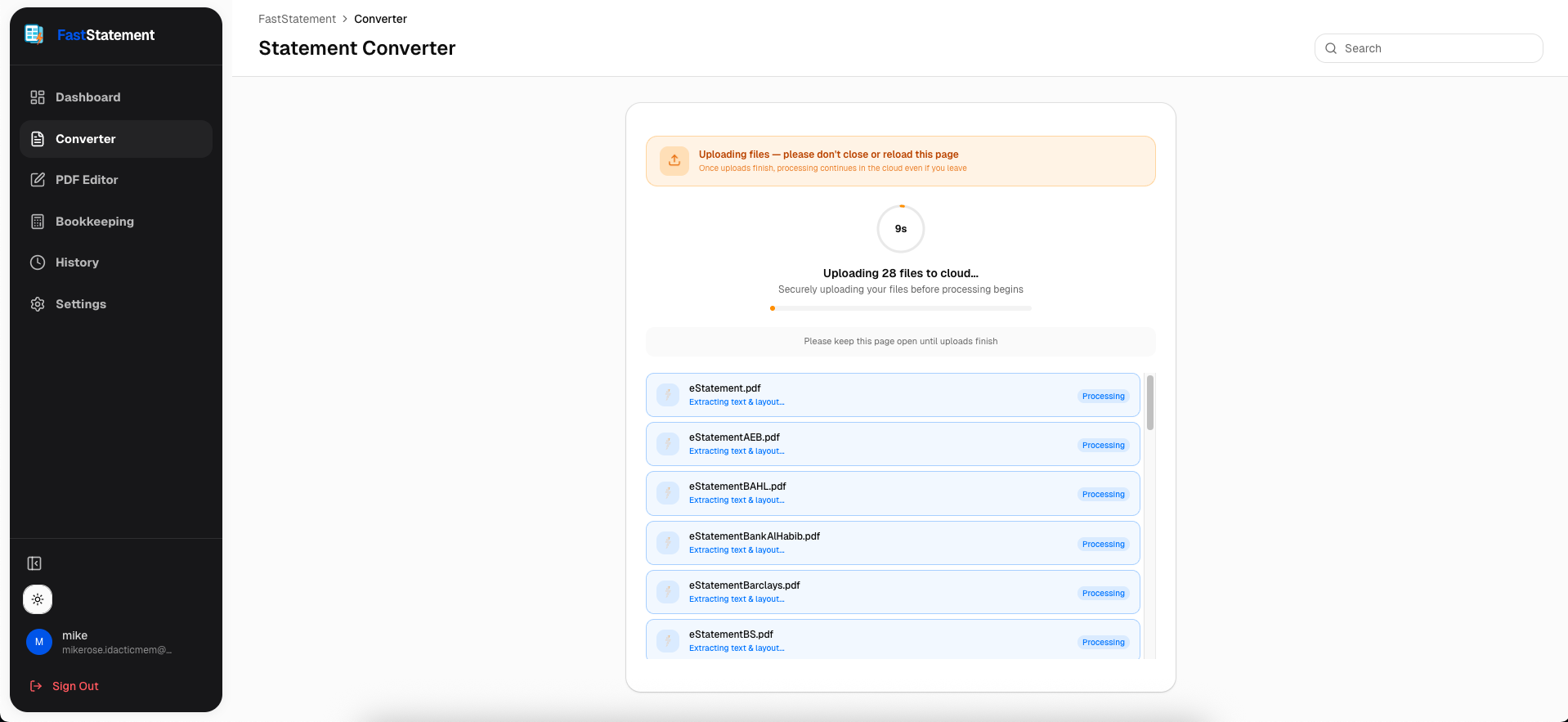
Cloud processing when you step away
Once uploads complete, processing continues in the cloud. You can leave the page or refresh without losing the job, which matters when you are juggling email between uploads.
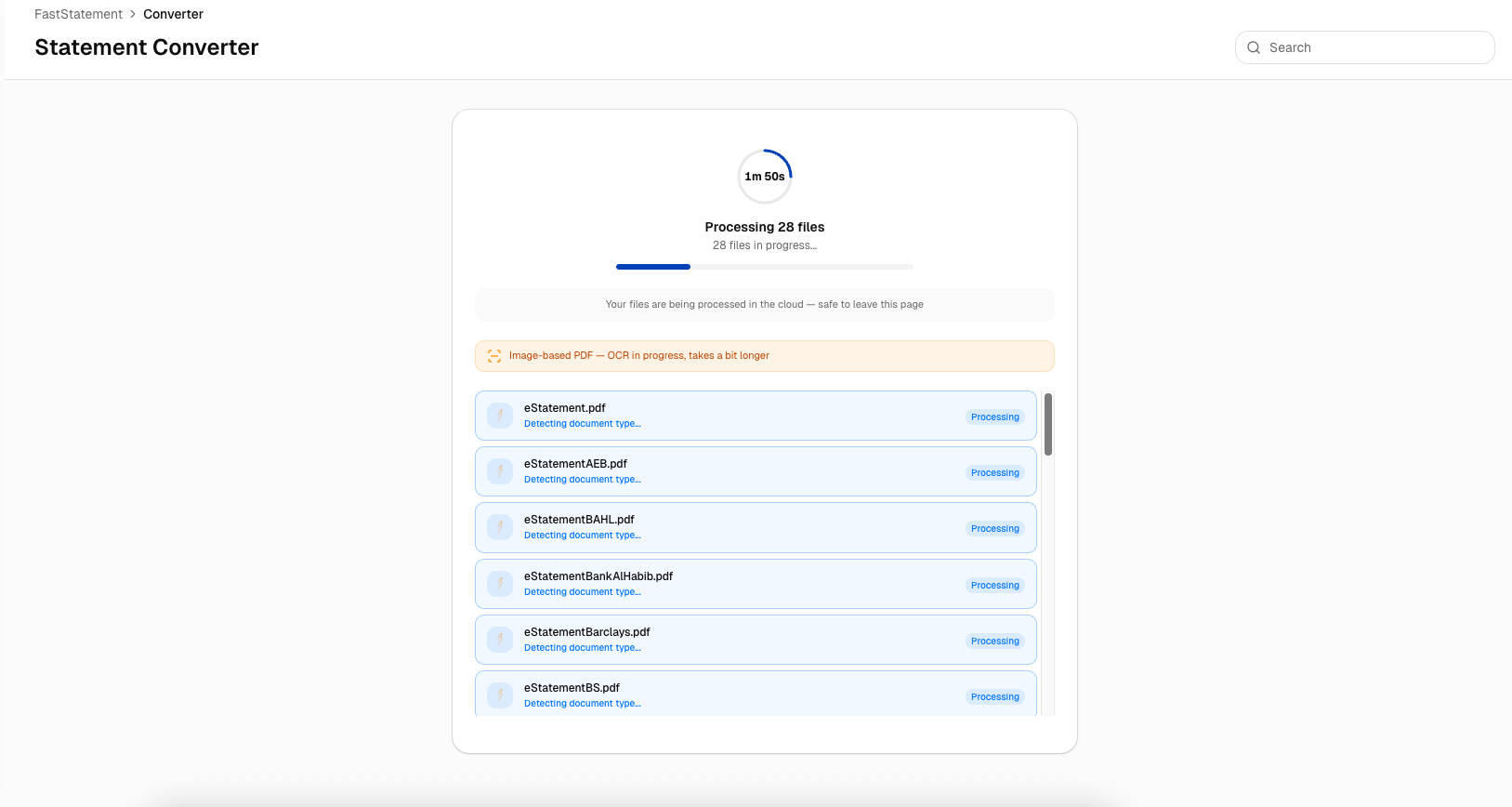
Live progress and history
The progress bar moves per file so you can tell whether you are stuck on one bad scan or cruising through a clean set.
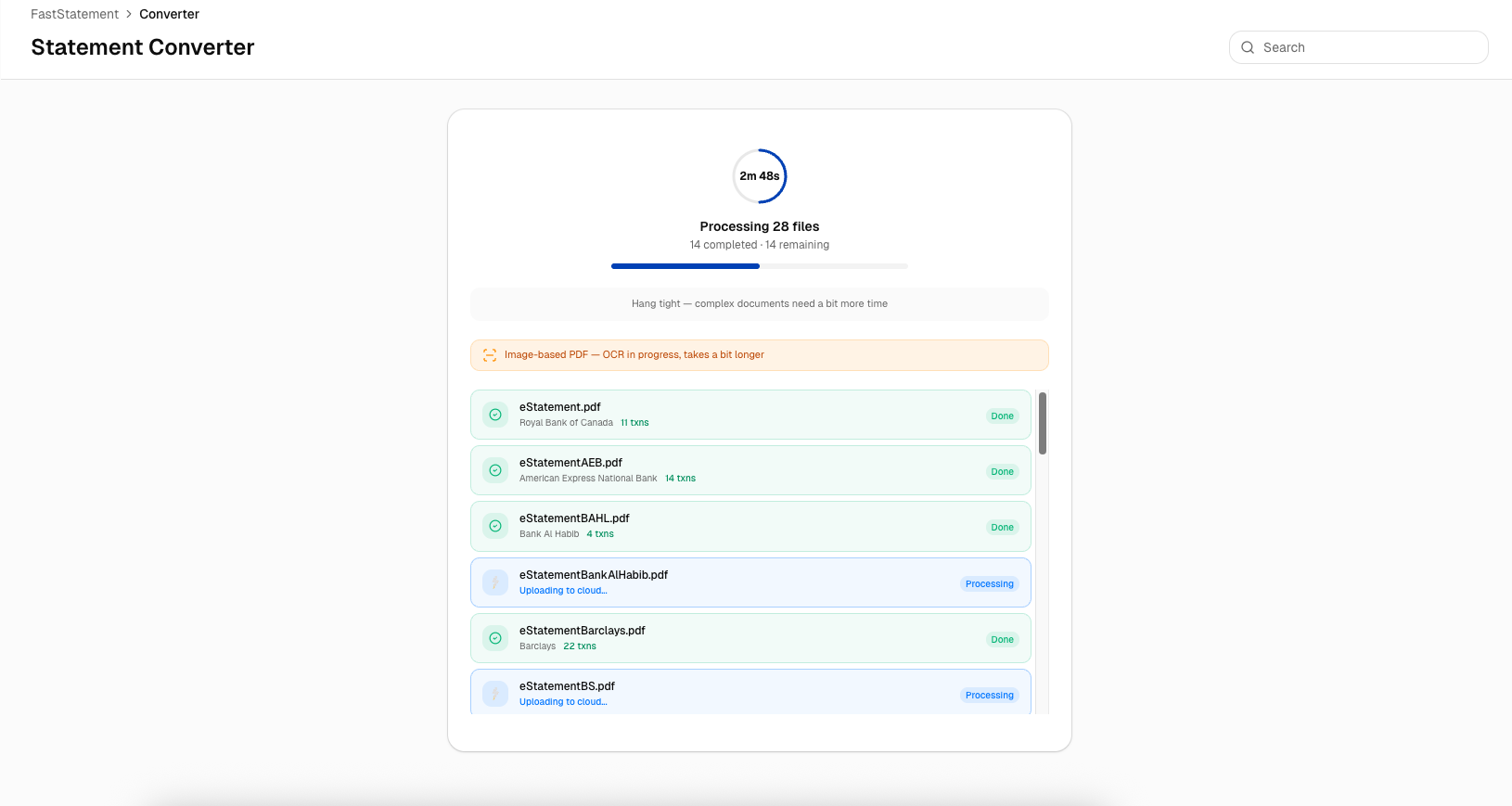
If a job runs long, open history and inspect how far the batch has moved. You get an honest percentage instead of guessing from fan noise.
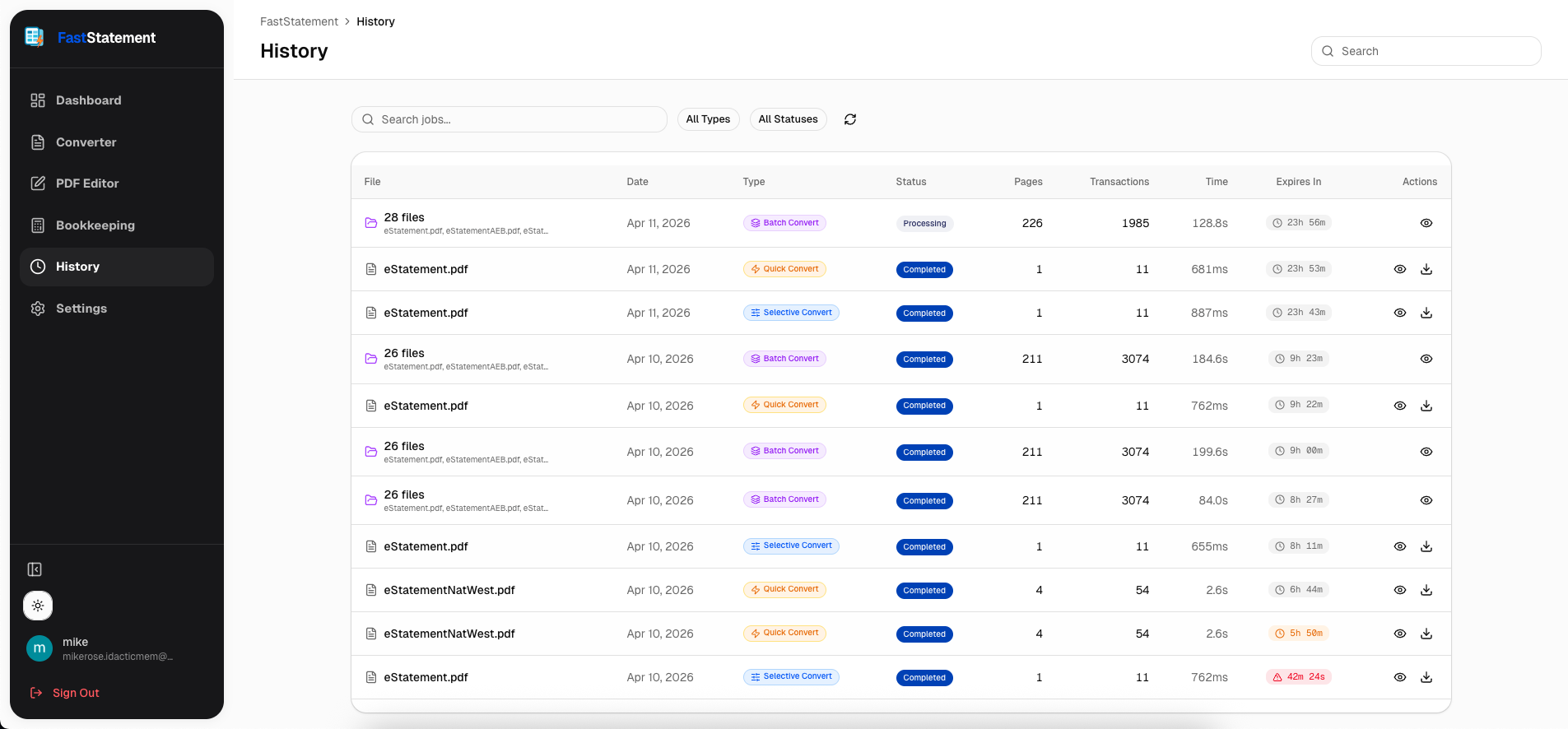
Click the job row to see per-file status inside that batch.
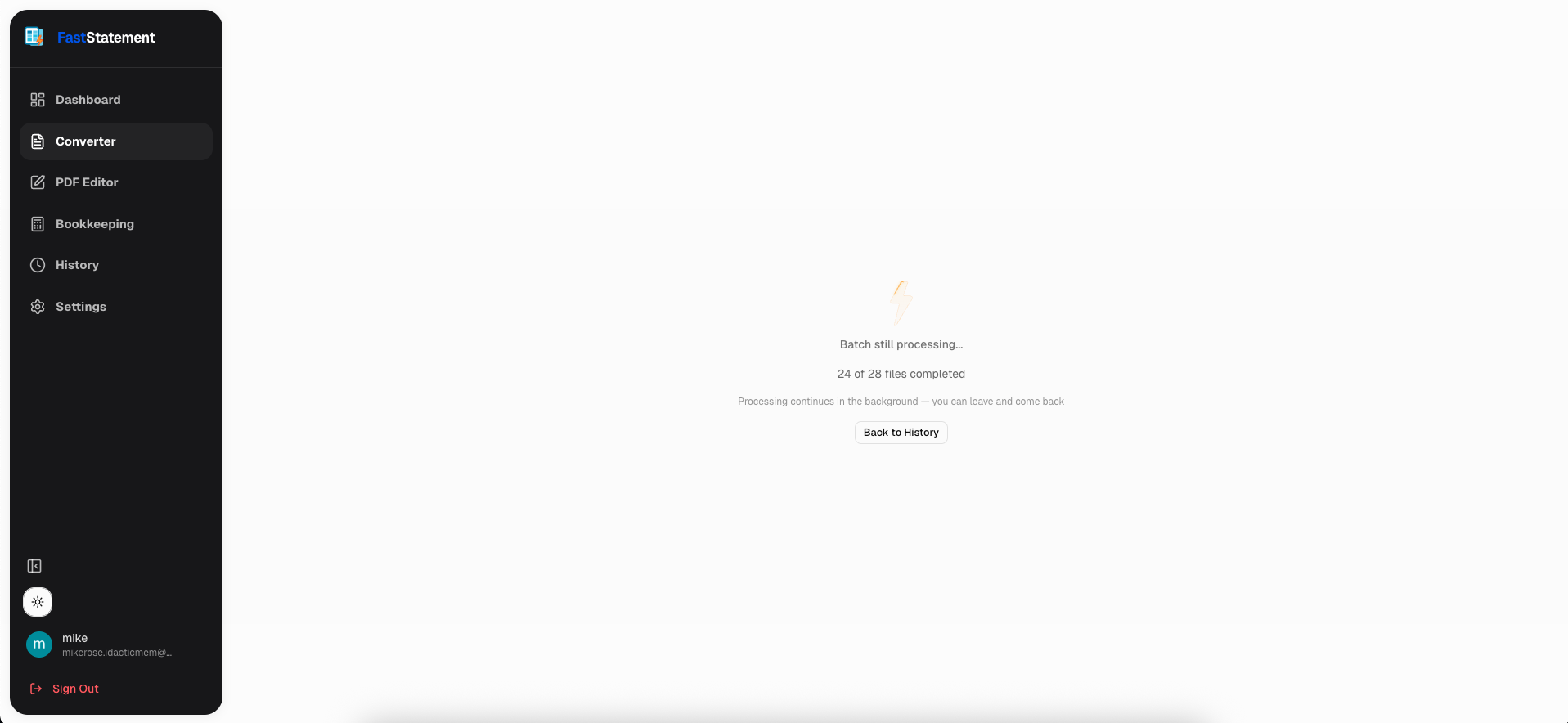
Completion and exports
When the job completes, the UI marks it clearly so you are not refreshing blindly.
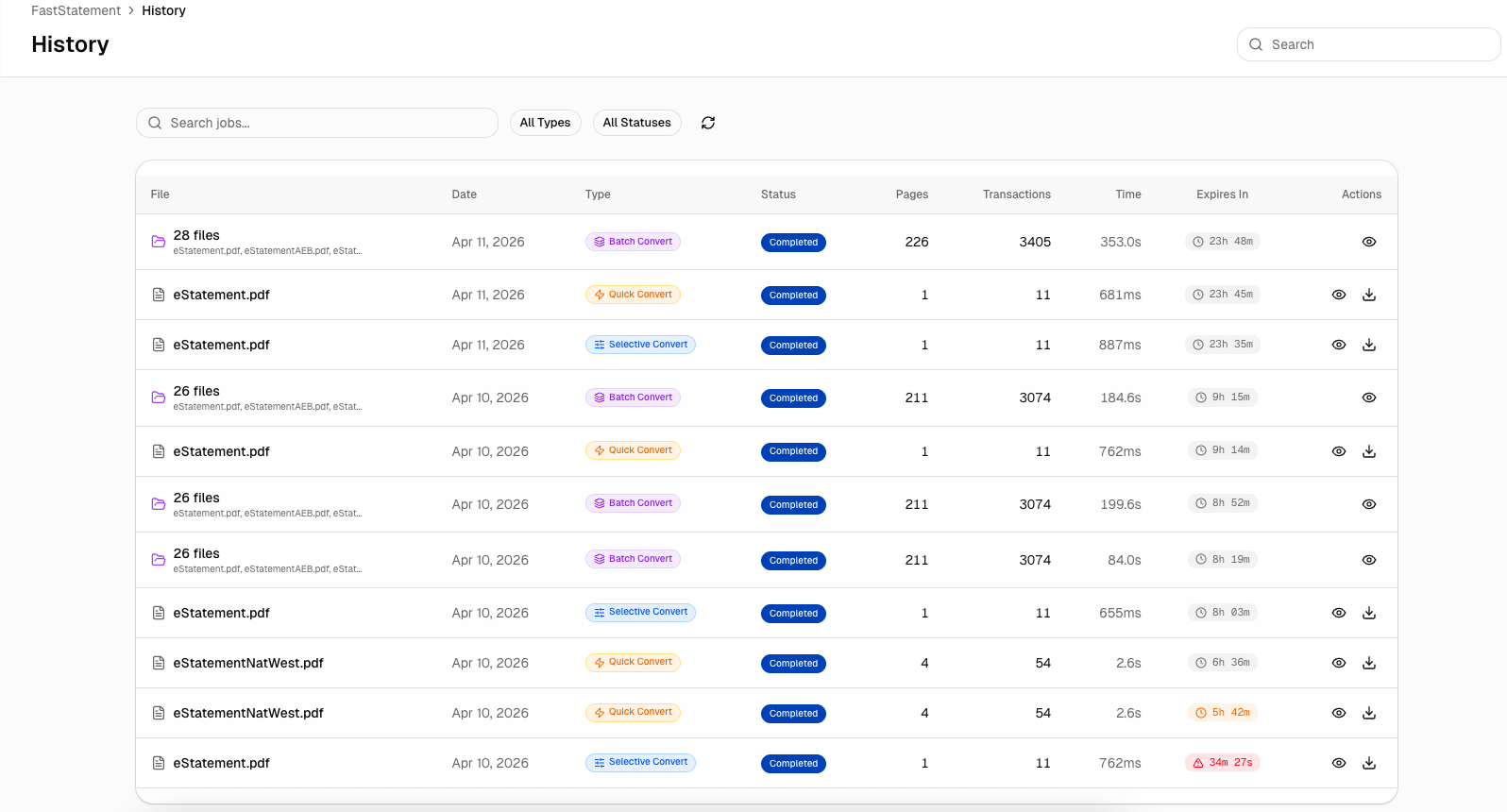
Open the job to see which PDFs succeeded and which need a retry or different password.
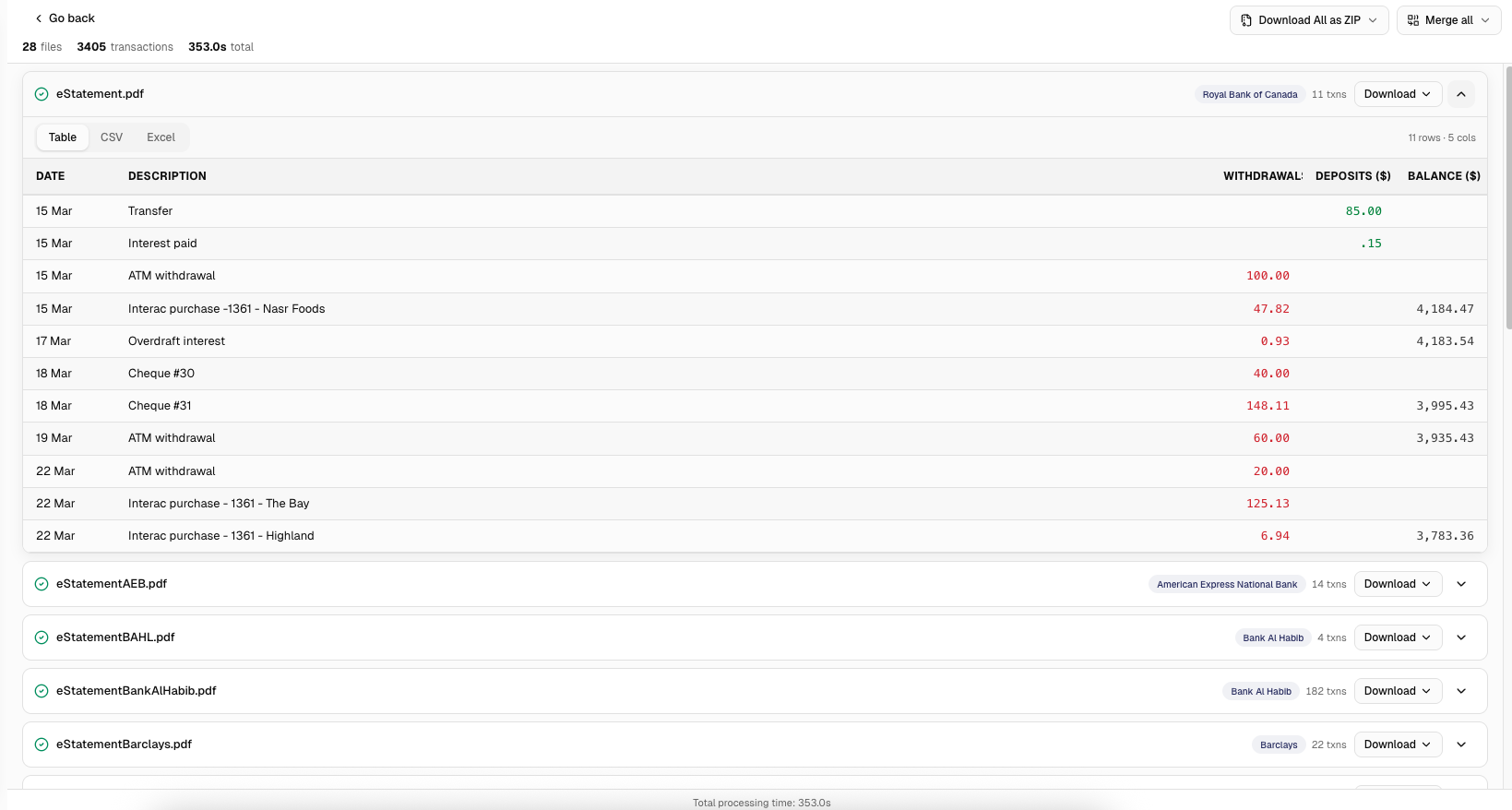
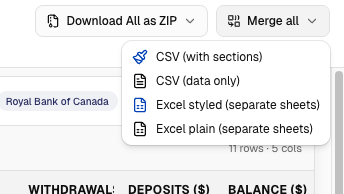
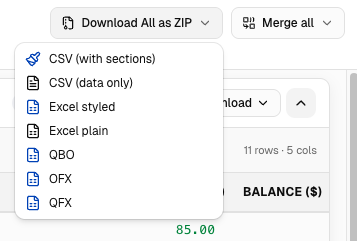
Download everything as a ZIP when you want a single attachment for your records.
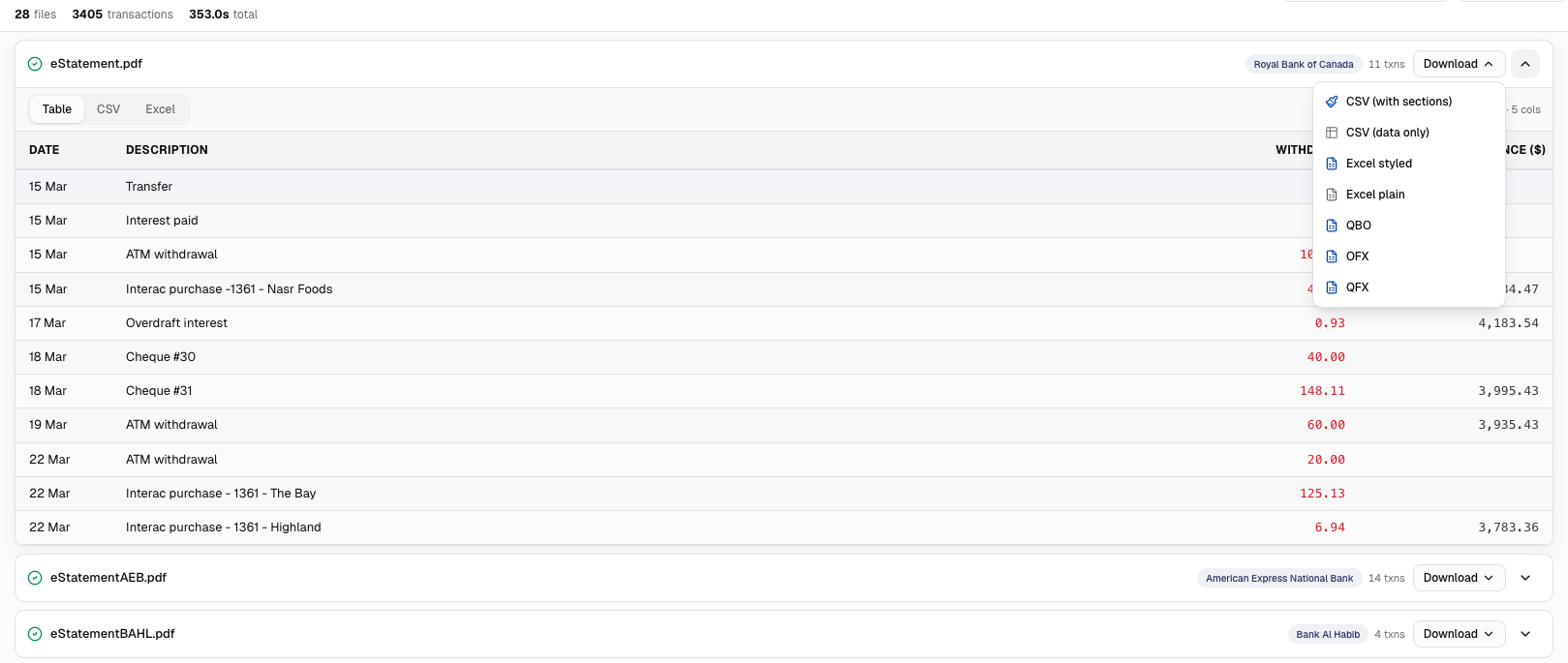
Pull individual outputs when you only need one statement for a dispute or audit sample.
Merge into one file when your downstream tool prefers a single import.