How to Choose the Right Bank Statement Converter in 2026: 10 Features That Matter
Don't waste money on the wrong bank statement converter. Learn the 10 critical features to evaluate: OCR accuracy, PDF editing, batch processing, privacy, pricing, and more. Compare FastStatement to competitors.
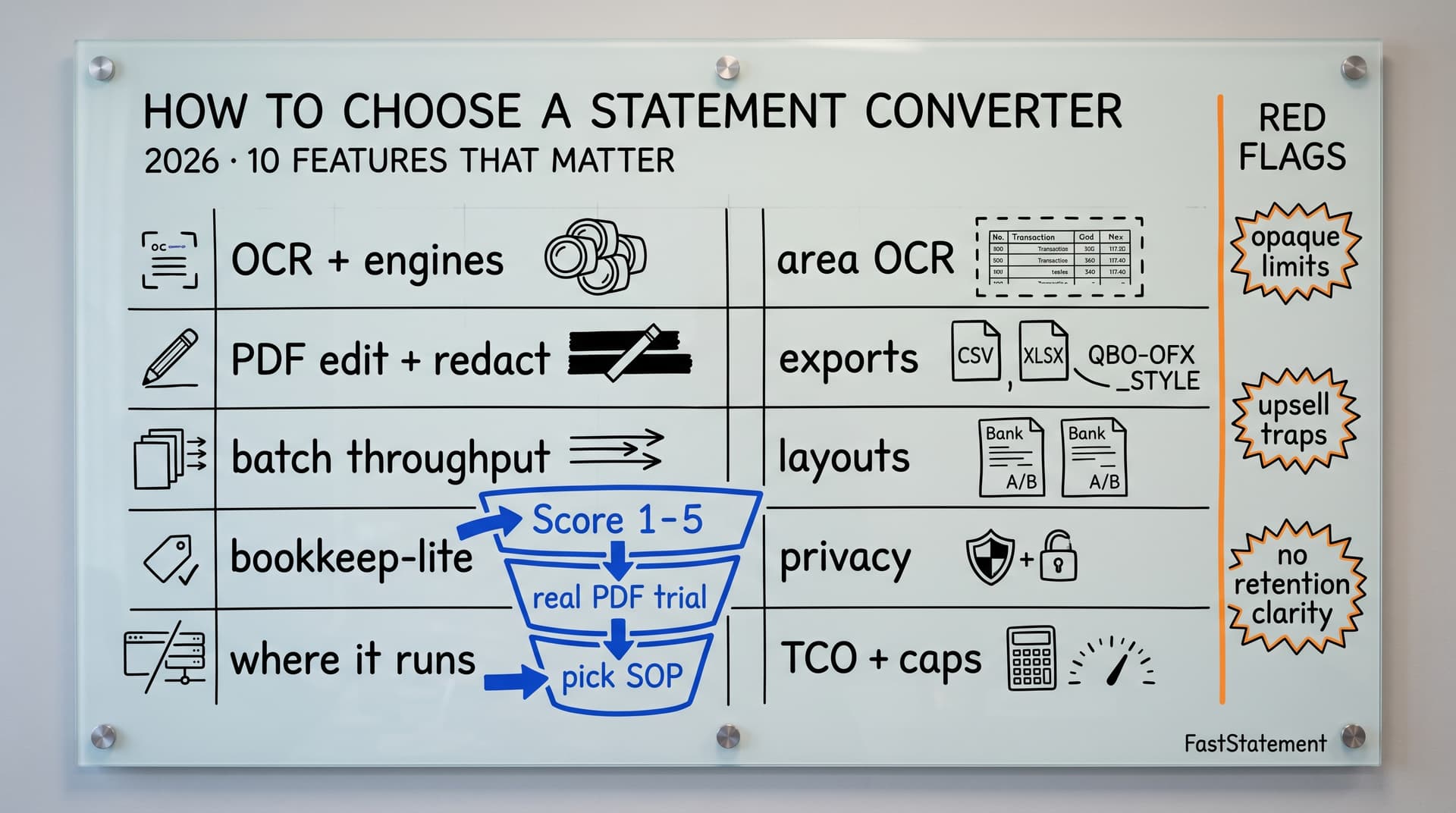
You need to turn PDF bank statements into structured data—usually Excel or CSV. A quick search gives you dozens of tools, all promising “conversion in seconds.”
Look closer, though, and the differences are huge. Some tools are accurate but slow. Others are fast but error-prone. Some charge extra for basic features like categorization or PDF editing. Others store sensitive statements on their own servers by default.
Choosing the wrong converter costs you time, money, and client trust. Choosing the right one can pay for itself in weeks. This guide walks through ten features that actually matter so you can make a confident decision—whether you support one small business or dozens of clients each month.
If you already want a head-to-head lineup of named products, pair this page with our best bank statement converters in 2026 comparison and the batch processing guide when volume is your main pain.
Who this framework is for
This scoring approach works best for accountants, bookkeepers, fractional CFOs, and anyone who touches real client money. If you only convert a personal statement twice a year, you can still use the list—you will just weight privacy and price more heavily than batch throughput or bookkeeping add-ons.
Throughout, “you” might mean your firm as well as your end client’s risk tolerance. When in doubt, prioritize features that reduce rework (accuracy, editing, clean exports) and data exposure (retention, encryption, where processing runs).
1. OCR accuracy and how many engines it uses
What it is
OCR (Optical Character Recognition) is what turns the text in your PDF into structured data. Some tools rely on a single OCR engine; others combine several engines with fallback logic.
Why it matters
Higher accuracy means far fewer manual corrections.
- Around 99.5% accuracy often means 0–1 errors per statement.
- Mid-80s to low-90s accuracy can mean 2–5 errors per statement.
- Every error usually costs 5–10 minutes to notice, understand, and fix—and that is optimistic if the mistake hits a reconciliation total.
What to look for
- Multiple OCR engines (three is a strong benchmark).
- Intelligent fallback when one engine struggles with a skewed scan or odd font.
- Clear, published accuracy numbers—not just vague claims.
- Good performance on both digital and scanned PDFs.
Red flags
- Only one OCR engine.
- No accuracy numbers published anywhere.
- Marketing copy that says “high accuracy” but nothing specific.
Our deeper technical read on this stack lives in OCR technology explained and scanned vs digital bank statements.
2. Built-in PDF editing
What it is
A built-in PDF editor lets you fix issues in the statement before you run extraction. That includes typos, date errors, and sensitive information you want to redact.
Why it matters
Banks sometimes ship statements with mistakes. If OCR reads those mistakes, you then fix them later in Excel or your accounting system—but that multiplies touches across reconciliation, tax workpapers, and client questions.
Correcting once in the PDF is faster than correcting multiple times downstream. Redaction at the source is safer than trying to clean data later in a spreadsheet column.
What to look for
- Text editing inside the converter (change amounts, names, dates).
- Ability to delete or hide irrelevant blocks (ads, disclaimers).
- Redaction tools to blank out account numbers and personal data.
- Included in the core product (not a separate paid add-on).
Red flags
- No editing tools at all.
- Instructions to “fix it in Excel after export.”
- Dependence on external tools like Acrobat that add ongoing cost.
For a product walkthrough, see the PDF statement editor step-by-step guide.
3. Batch processing instead of one-by-one
What it is
Batch processing means you can upload and convert many statements at once instead of repeating the upload-wait-download cycle for each file.
Why it matters
Uploading one statement at a time is manageable at low volume, but painful at scale. For monthly workflows, cumulative waiting and clicking becomes a hidden time sink. With clients or multiple accounts, one-by-one processing quickly turns into hours of overhead.
What to look for
- Ability to drag-and-drop dozens of PDFs in one go.
- Parallel processing so many files finish in roughly the time of one.
- No tiny batch limits that force you to split work into multiple runs.
Red flags
- Only single-file uploads.
- Hard limits like “up to 5 files per batch.”
- Batch features locked behind higher-priced tiers.
4. Built-in bookkeeping features
What it is
Some converters now include a light bookkeeping layer: categorization, reconciliation aids, duplicate detection, and simple reporting.
Why it matters
Raw CSV is only step one—someone still has to categorize and reconcile. Manual categorization across multiple clients is slow and error-prone. Many standalone tools charge a premium for categorization or “analysis” modules that compound your subscription stack.
What to look for
- Automatic or rules-based categorization.
- Duplicate detection and basic reconciliation support.
- Included as part of the main product, not an expensive add-on.
Red flags
- No categorization at all if you handle real bookkeeping.
- Essential features available only on high-end plans.
- Extra subscription just for categorization or “analysis” modules.
If workflows are heavier, read month-end: statement to books pipeline.
5. Client-side vs cloud-only processing
What it is
Client-side processing runs OCR and extraction in your browser (or on your machine). Cloud-only tools upload documents to remote servers, process them there, and return a download.
Why it matters
Financial statements are highly sensitive. Many clients expect their data not to linger on vendor servers. Cloud processing also adds latency—queues, rate limiting, peak-time slowdowns. Local-first flows can produce immediate turnaround and stronger privacy optics, provided the vendor explains retention honestly.
What to look for
- Clear articulation of where bytes live during processing.
- Short retention or predictable deletion schedules for uploads.
- Fast exports without constant “job queued” friction if that matters to your SLA.
Red flags
- Tool cannot work at all without constant internet access (may be acceptable, but know the trade-off).
- Vendor stores statements indefinitely “for convenience” or model training.
- No mention of data retention, deletion, or hosting region.
Always read the privacy policy and any SOC 2 / security pages—even a great UI is not a substitute.
6. Area-based OCR for complex layouts
What it is
Area-based OCR (region selection) lets you draw a box around just the transaction table—or the region you care about—and extract only that.
Why it matters
Real statements contain headers, footers, promo banners, and disclaimers. If OCR ingests the full page, output often mixes useful and useless text. You then waste time filtering out junk rows and columns.
What to look for
- A visual mode where you can select a rectangular region.
- Ability to run OCR on that region alone, not the full page every time.
- Smooth handling of multi-column transaction tables and multi-account pages.
Red flags
- Always extracts the entire page, every time.
- No way to restrict OCR to a specific table or area.
- Frequent need to manually clean out headers and footers.
7. Export formats that match your workflow
What it is
Export formats like Excel, CSV, QBO, and OFX dictate what you can do next with your data.
Why it matters
Accounting platforms (QuickBooks, Xero, Wave, and similar stacks) often expect CSV or vendor-specific imports. Analysts and finance teams often want Excel for pivots, formulas, and charts. PDF is better for client-facing reports or archives.
What to look for
- At least Excel (.xlsx) and CSV (.csv), plus the accounting formats you actually post with.
- No paywalls around basic export formats you use weekly.
- Outputs that are properly formatted and ready to use—not “CSV” that is really a misaligned paste.
Red flags
- Only a single export format (for example, CSV only) when you need more.
- Extra charges for Excel or additional formats you considered “included.”
- Messy exports that always require manual re-formatting.
If QuickBooks is in scope, see bank statement to QuickBooks.
8. Breadth of bank format support
What it is
Different banks use different statement layouts. Some tools are tuned for a handful of majors; others support a wide range of formats.
Why it matters
You and your clients may use multiple banks and regions. A tool that handles only a few big names will break on regional banks or credit unions. You do not want separate workflows depending on which bank shows up in the inbox.
What to look for
- Clear examples of supported layouts (even if not an exhaustive list).
- Coverage of major nationals and common regional institutions.
- A process for reporting mis-parses or requesting layout improvements.
Red flags
- Only generic “any PDF” claims with no concrete examples.
- Support limited to a tiny list of institutions.
- No visible roadmap or openness to new layouts.
9. Privacy, security, and compliance
What it is
Privacy and compliance controls cover how your data is handled, stored, encrypted, accessed, and deleted.
Why it matters
Accountants, bookkeepers, and loan officers carry regulatory and contractual obligations. Clients rely on you to protect statements and transaction metadata. Poor data handling can invite breaches, churn, complaints, or regulator attention.
What to look for
- Clear privacy policy and data-handling overview.
- Short retention or disciplined deletion timelines.
- Explicit statements about not training models on customer documents unless opted in (if the vendor sells “AI”).
- Encryption in transit and at rest wherever cloud touchpoints exist.
Red flags
- Vague privacy policies pasted from a template.
- Statements used for “improving our services” without meaningful opt-out.
- No mention of compliance posture or retention—even in FAQ form.
10. Pricing, limits, and real value
What it is
Pricing is not just the headline monthly fee. It includes page limits, per-statement quirks, caps on batch sizes, OCR-only tiers, and paid extras for features you assumed were core.
Why it matters
A low sticker price can hide expensive add-ons. Per-page economics can explode at volume. Paying separately for core features (editing, categorization) kills ROI even if each line item looks reasonable.
What to look for
- Transparent pricing tables.
- Clear page or usage limits per tier before you swipe a card.
- Core capabilities you rely on (OCR quality, editing, batch, exports) included on the tier you intend to stay on—not only on Enterprise.
- A realistic trial that accepts your statements, not sanitized demos.
Red flags
- Important pricing details emerge only after signup or a sales call.
- Very low teaser price paired with aggressive upsells on basic workflows.
- Necessary capabilities locked strictly behind enterprise contracts.
Explore FastStatement pricing—free tier available—to compare numbers next to workflow fit.
Feature-at-a-glance checklist
Use this table as a worksheet when vendors send you demos or sandbox logins:
| Dimension | Questions to answer |
|---|---|
| OCR | Engine count? Digital vs scan accuracy claims? Fallback behavior? |
| Editing | Inline fixes and redaction without leaving the product? |
| Batch | Practical multi-file uploads and parallelism for your volumes? |
| Bookkeeping light | Categories, reconciliation helpers, duplication checks? |
| Processing model | Where data resides; deletion cadence; offline vs online? |
| Area OCR | Can you isolate messy tables cleanly? |
| Exports | CSV, XLSX, and the accounting imports you truly use? |
| Bank coverage | Your institutions covered without custom services? |
| Trust | Policy clarity, certifications you care about? |
| TCO | All-in monthly cost incl. caps, overtime, humans fixing errors |
A simple scoring approach
When comparing tools, create a quick scorecard. For each feature bucket above, score each tool 1–5 and weight categories based on your use case:
- OCR accuracy
- PDF editing
- Batch processing
- Bookkeeping features
- Client-side vs cloud-only posture
- Area-based OCR
- Export formats
- Bank coverage
- Privacy and compliance
- Pricing and overall value
This makes it easier to move beyond marketing pages and see which converter really fits your workflow and risk profile. If two tools tie on score, break the tie with a real statement bake-off: same PDFs, same timer, same junior staffer redoing mistakes—truth shows up quickly.
Key takeaways
- Accuracy and privacy are the two biggest levers for professionals handling client money—not just “does it export CSV?”
- Built-in editing, batch processing, and area-based OCR materially cut cleanup time before data ever touches the GL.
- Export flexibility and bank coverage determine how many disparate workflows you can consolidate into one tool.
- Total cost of ownership beats sticker price—include staff time fixing errors and the opportunity cost of a slow month-end close.
Test any candidate with a handful of real statements from different banks. Score against these ten lenses, then lock your standard operating procedure around the winner—you will onboard staff faster and sleep better during busy season.
Questions? Explore features, read more on the blog, or try FastStatement free—no signup required for your first page.