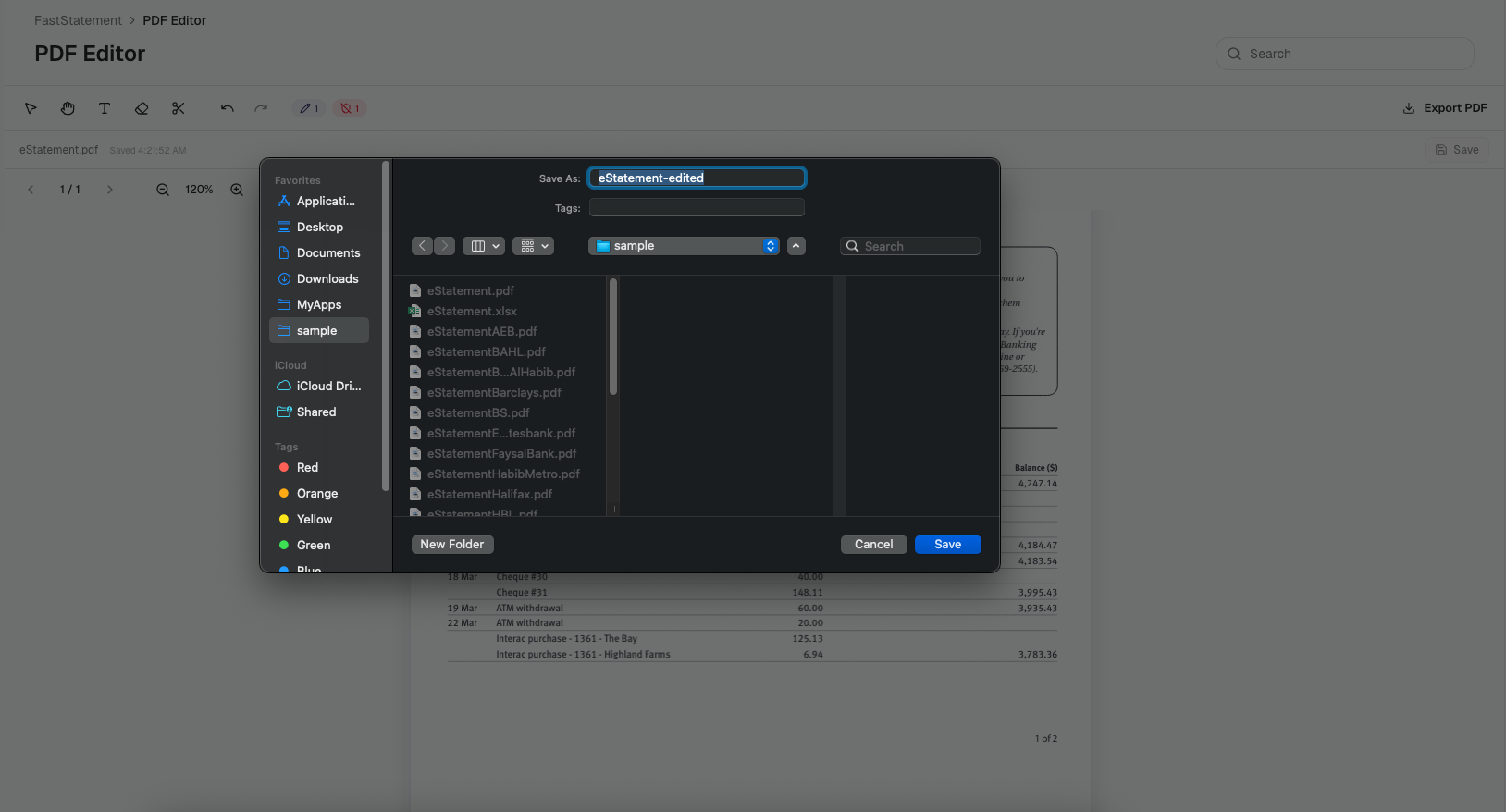
PDF Statement Editor: Analyze, Edit, Redact, Export
Step through FastStatement PDF edit mode: run analysis, change tables and summaries, redact sensitive text, and export a print-ready PDF.

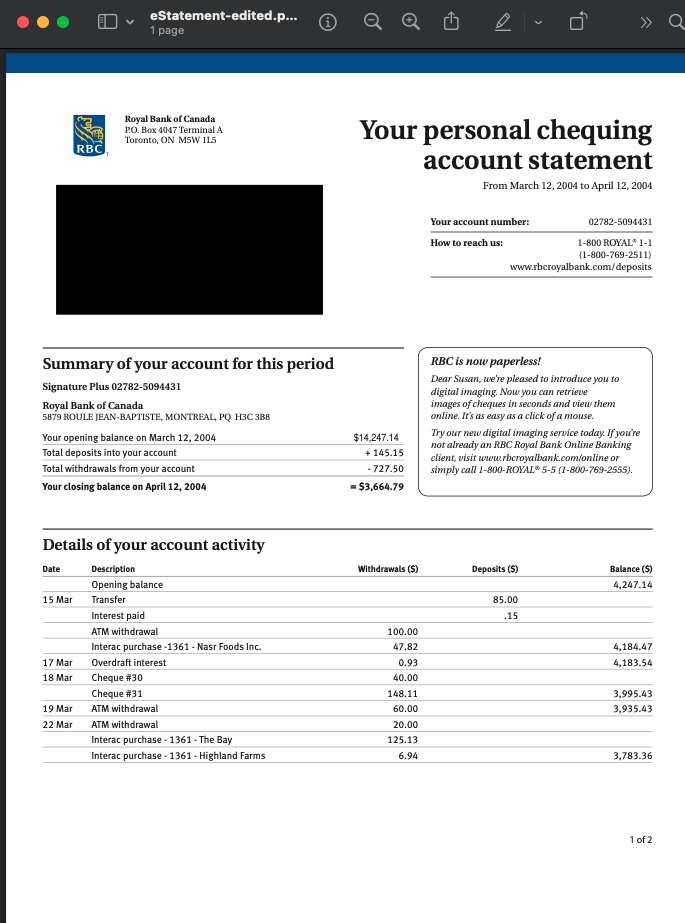
Spreadsheet exports are not always the deliverable. Sometimes you need a PDF that still looks like a bank statement, minus one wrong digit or a client account number that should not leave your shop.
This guide tracks only the PDF editor path. For the full product tour, start with the visual step-by-step guide.
Run statement analysis first
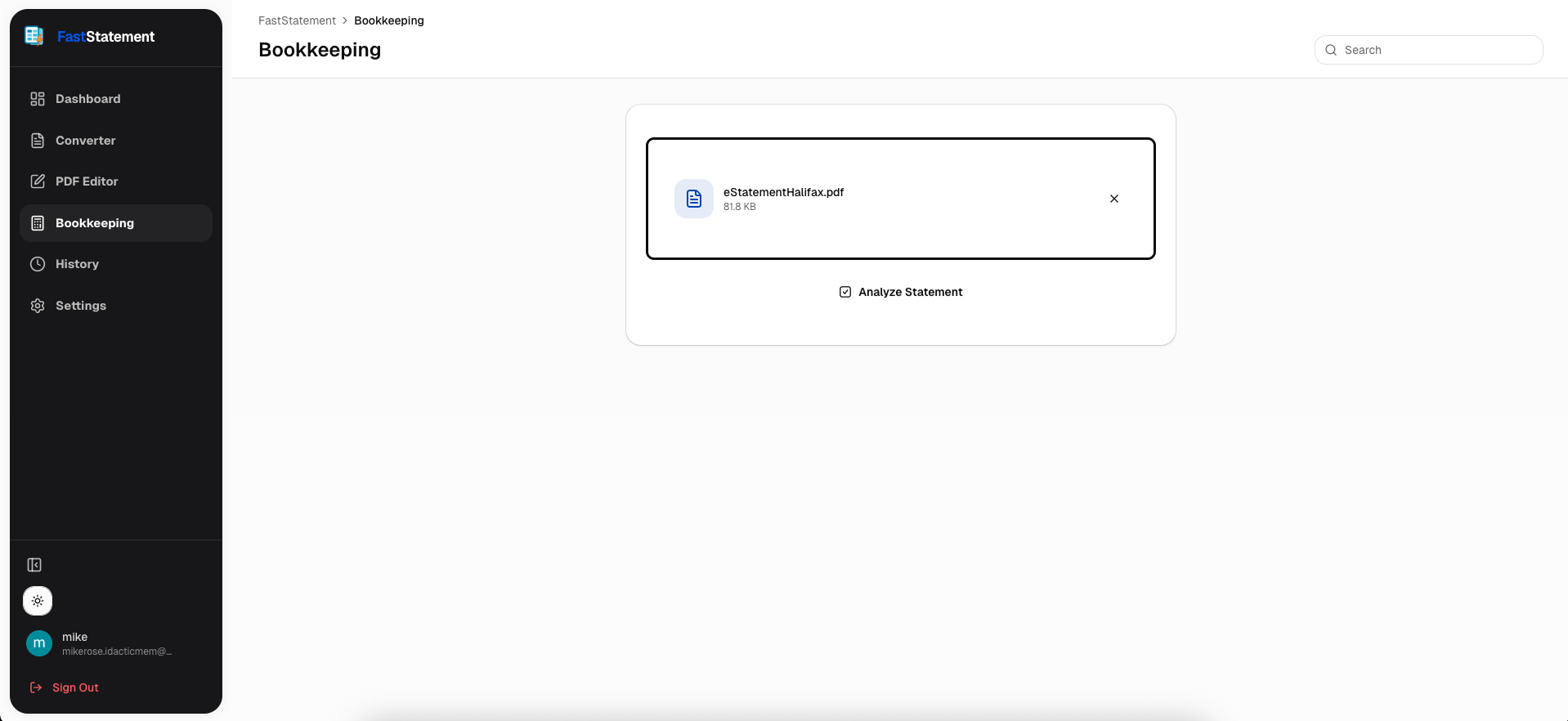
Open the editor workflow and start from “analyze statement” so the tool maps text blocks and tables before you touch anything.
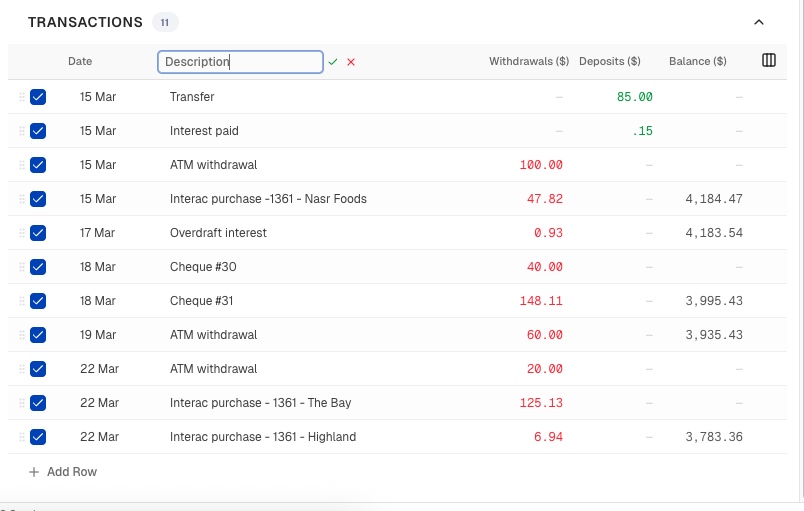
Edit structure: rows, columns, numbers, summaries
Use the grid tools when totals drift or a row is missing. Fixing structure here is faster than patching cells in Excel after export.
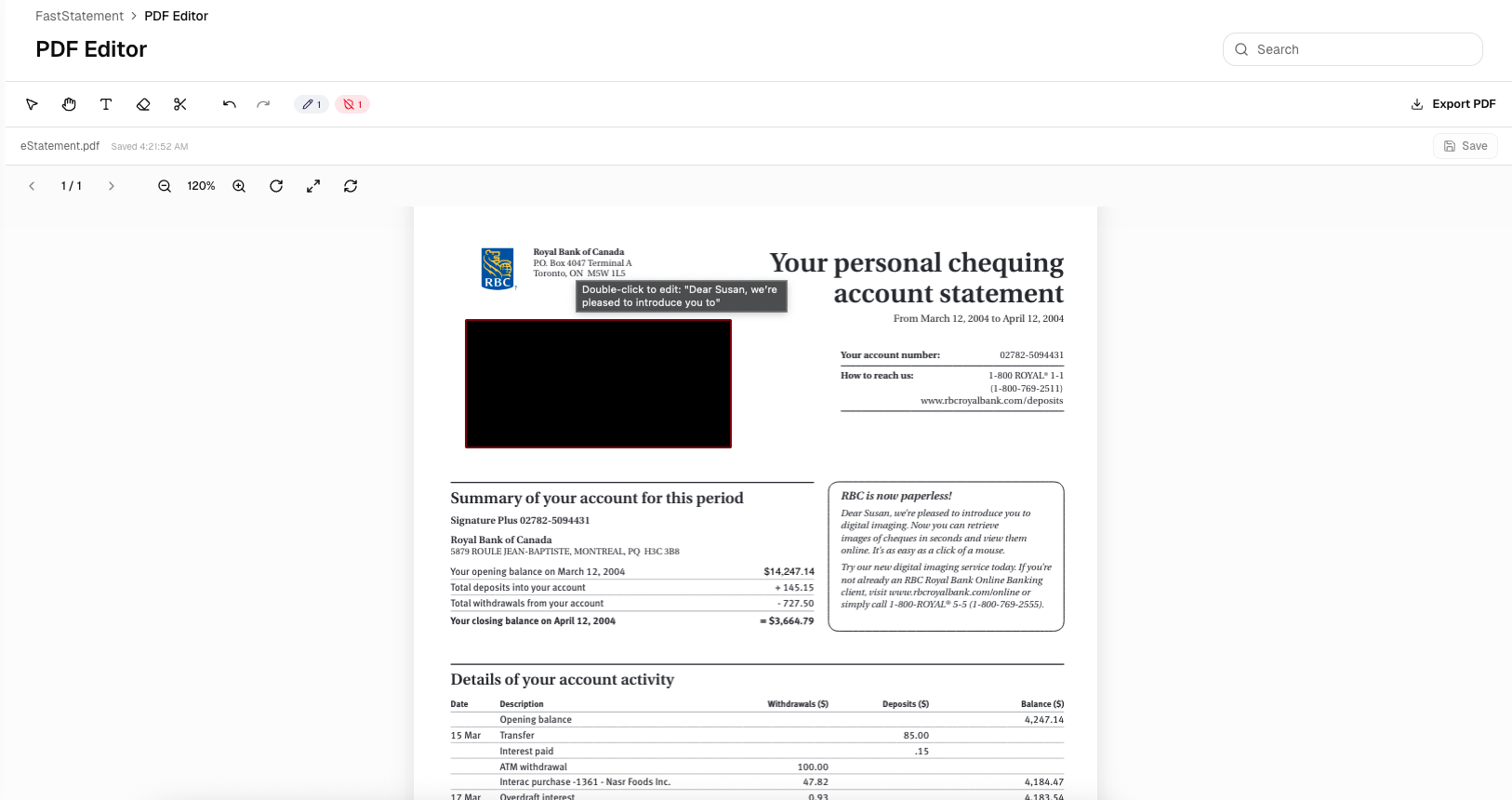
Redact words, amounts, and labels
Redaction is blunt on purpose. If a string should not appear in the final PDF, mark it and let the tool burn it out consistently.
Check preview fidelity
Before you ship, compare fonts and sizing to the source PDF. The goal is a file your client can file away without apologizing for layout drift.
Export the edited PDF
Save the final document when the on-screen preview matches what you expect.